
Yes, you can integrate Newton Velocity with your CRM and other mortgage tools, either through an API connection or a CSV export/import fallback. The practical result: deals, borrowers, and key fields flow automatically out of Velocity so you stop re-keying the same file twice. For Canadian brokers running any real volume, that alone can save hours a week.
TL;DR:
- The integration primarily transfers key deal details, borrower contacts, lender info, property address, and deal stage, reducing manual data entry errors.
- Setup involves generating an API key, confirming access permissions, choosing a sync trigger, and verifying data accuracy through a test run.
- Standard fields like mortgage amount, purchase price, and key dates sync smoothly, while custom fields and attachments often require additional mapping or manual handling.
- CSV fallback remains necessary for historical data, migration, or lack of API access but demands extra formatting and manual checks to avoid import failures.
- Document automation complements Velocity sync by extracting and verifying paperwork data, significantly decreasing post-sync reconciliation time.
Table of Contents
- What Does the Newton Velocity Integration Actually Do?
- How Do You Set Up the Velocity Integration Step by Step?
- Which Fields and Records Sync Between Velocity and Your CRM?
- When Should You Use the Legacy CSV Export Path?
- How Does Document Automation Reduce Post-Sync Cleanup?
- Should You Configure This Yourself or Bring in Help?
- Autowrite Handles the Paperwork Velocity's Sync Leaves Behind
- Sources
- FAQ
What Does the Newton Velocity Integration Actually Do?
A working Newton Velocity integration takes a file you've already built in Velocity and mirrors it somewhere else, usually a CRM, without you touching the keyboard a second time. BrokerDam's integration is a good example of how this works in practice: a deal opened in Velocity shows up in the CRM as a deal record, with borrowers and co-borrowers automatically created as contacts.
Here's what typically moves across in a sync:
- The deal itself, including mortgage amount and purchase price
- Borrower and co-borrower details, created as new contact records
- Lender name and key dates (application, approval, closing)
- The subject property address
- Deal stage, mapped into your CRM's own pipeline stages
The business case is simple. Fewer manual entries mean fewer transcription errors, and your team can assign follow-up tasks the moment a deal status changes instead of waiting for someone to notice it in Velocity first. If you're a brokerage with agents working leads independently, that speed difference between "deal closed in Velocity" and "task assigned in CRM" often decides how quickly a referral gets nurtured.
How Do You Set Up the Velocity Integration Step by Step?
Setting up a sync between Velocity and your CRM follows a fairly predictable pattern across most integration tools, whether you're connecting to a CRM directly or routing leads in through a service like Roar Solutions' Velocity connector. Here's the sequence to follow:
- Generate your API key. Log into Velocity, head to account or integration settings, and generate a new API key tied to your account.
- Paste it into your CRM's integration settings. Most CRMs have a dedicated Velocity or "Newton" integration panel where the key gets stored.
- Confirm authentication and scope. Check that the key has read access at minimum, and write access only if you need two-way sync.
- Choose your sync trigger. Decide between manual sync, a scheduled interval (hourly or daily), or a webhook if your CRM supports real-time triggers.
- Check user permissions. Make sure the Velocity user account tied to the key has visibility into every deal you want synced, not just their own book.
- Run a test sync and verify. Pick one sample deal, confirm the deal count matches, check that mortgage amount, dates, lender, and address landed correctly, and confirm the borrower's contact record was created.
Pro Tip: Store the API key server-side rather than in a spreadsheet or shared document, and scope it to the least access it needs. Rotating the key every few months costs you five minutes and closes off a lot of unnecessary risk.
That final verification step matters more than people give it credit for. A post-sync checklist that confirms deal count, sample fields, and stage mapping catches the kind of quiet mismatch that otherwise surfaces three weeks later as a missing closing date.
Which Fields and Records Sync Between Velocity and Your CRM?
Knowing exactly what transfers, and what doesn't, save you from building CRM custom fields you'll never populate. Standard Velocity to CRM syncs create a deal record plus a contact record per borrower, with co-borrowers added as linked contacts rather than duplicated deal entries.
Fields that typically sync without issue:
- Mortgage amount and purchase price
- Lender name
- Subject property address
- Key dates: application date, approval date, funding or closing date
- Loan product identifiers
- Deal stage, mapped to your pipeline
What usually doesn't come across cleanly: file attachments (appraisals, income documents, ID scans) and highly specific custom fields you've added inside Velocity that your CRM has no equivalent slot for. The practical fix is to build a small mapping table before you turn the sync on, matching each Velocity stage (Application, Conditional Approval, Funded, etc.) to its nearest CRM pipeline equivalent, so nothing lands in an "unmapped" bucket by default.
When Should You Use the Legacy CSV Export Path?
CSV is your fallback when there's no API access, when you're migrating years of historical deals at once, or when you just need a one-off bulk transfer rather than an ongoing sync. It's slower and manual, but it works everywhere.
- Export from Velocity. Pull the standard columns: deal ID, borrower name, mortgage amount, purchase price, lender, dates, and property address.
- Clean the file before touching your CRM. Date formats and number formatting (commas, currency symbols) are the two most common causes of failed imports.
- Test with a small batch first. Import 10 to 20 records, verify the mapping, then run the full file.
- Watch for address parsing errors. Most CRM import tools split addresses into separate fields, and a single-line Velocity address often needs manual splitting.
If your CRM rejects rows, it's almost always a formatting mismatch rather than a data problem. Fix the format, not the data.
How Does Document Automation Reduce Post-Sync Cleanup?
A Velocity sync solves the double entry problem, but it doesn't touch the paperwork sitting behind each deal. That's a separate bottleneck, and it's usually the bigger one. Autowrite automates document intake, classification, and line-level data extraction for Canadian mortgage brokers, which means it can pick up right where a Velocity sync leaves off.
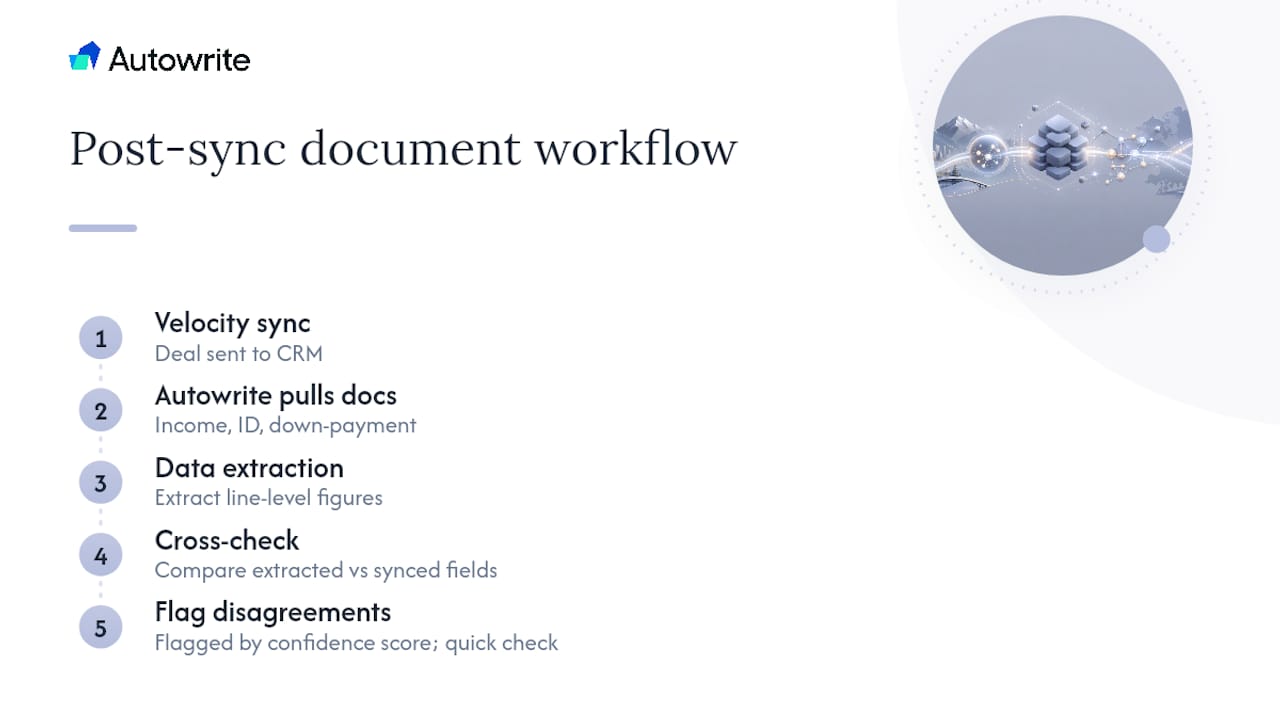
The practical workflow looks like this: Velocity syncs a deal into your CRM, Autowrite pulls the borrower's income documents, ID, and down payment proof, extracts the relevant figures, and cross-checks them against what synced over. Where the extracted number and the synced field disagree, a confidence score flags it for a quick manual look instead of a full file review. That single step is often what shortens the reconciliation loop from a manual, line-by-line audit to a five-minute spot check.
Pro Tip: Run your document automation check the same day as your sync, not a week later. Catching a mismatched mortgage amount while the file is fresh in your head takes two minutes; catching it during a compliance audit takes an afternoon.
For brokers juggling compliance packaging on top of everything else, this pairing means duplicate detection and audit-ready document assembly happen in the background while the CRM shows a deal that's already been checked, not just synced.
Should You Configure This Yourself or Bring in Help?
If you're running a smaller book and you're comfortable with account settings, setting up the sync yourself is realistic. Once you're managing multiple agents or a higher deal volume, the back-office complexity usually justifies delegating it. Either way, expect a 30 to 90 day settling period as data habits and mapping rules stabilize, and build one weekly habit: scan for failed syncs and newly created mismatches before they pile up.
— Anant Bawa
Autowrite Handles the Paperwork Velocity's Sync Leaves Behind
Getting deals to sync is only half the job. The other half is the pile of income statements, appraisals, and ID documents sitting behind each file, and that's where Autowrite earns its place in your stack.
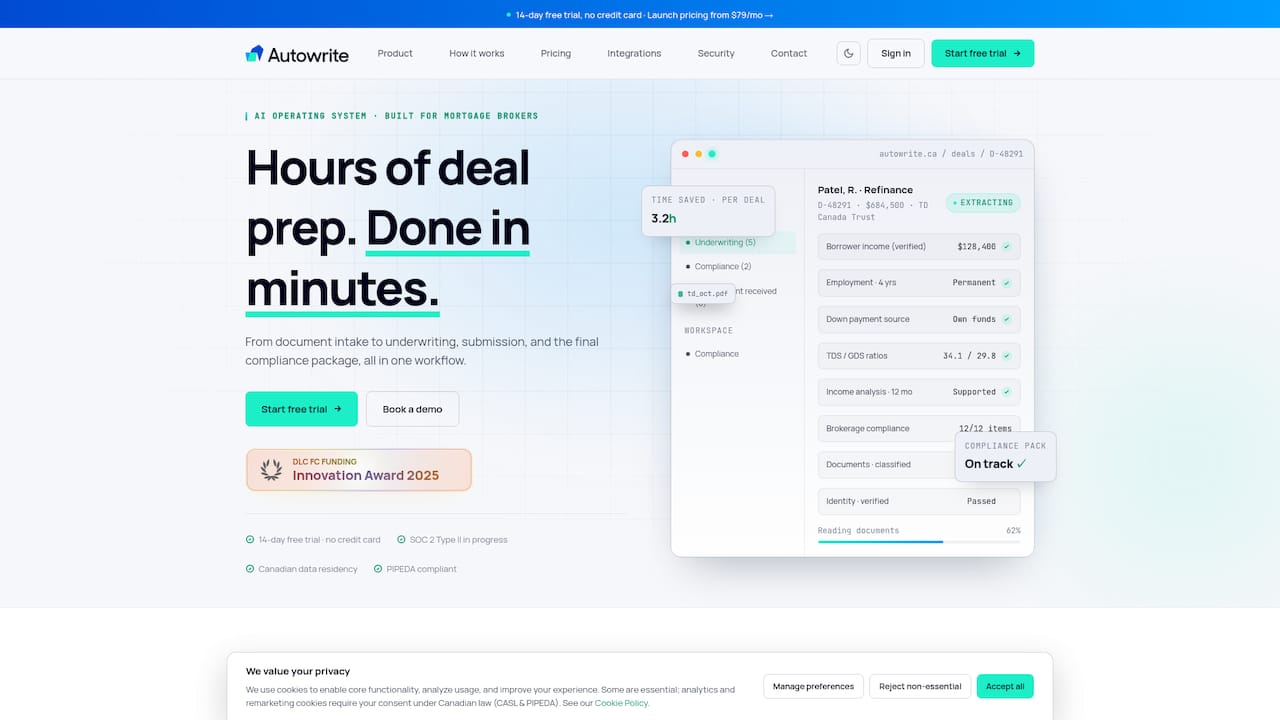
Autowrite classifies incoming mortgage documents, extracts the numbers line by line, and assembles compliance packages automatically, so a synced deal shows up in your CRM already backed by verified, extracted data instead of a folder of unread PDFs. It's built specifically for the paperwork side of the Canadian mortgage workflow, which makes it a natural complement to whatever CRM sync you've already set up with Velocity. Brokers handling high document volumes or preparing for a compliance audit tend to see the biggest time savings, since the manual reconciliation work simply disappears into the extraction step.
Plans start with Starter at $149 per month, scaling up through Pro at $269 and Legend at $499, with a 14 day free trial to test it against your own file volume before committing.
Sources
FAQ
Does Newton Velocity Have a Native API for CRM Sync?
Velocity supports API-based integrations, which is how tools like BrokerDam pull deal and contact data automatically. Your access level depends on your account settings, so check with your admin or Velocity account rep if the API key option isn't visible.
What Happens to Co-Borrowers During a Sync?
Co-borrowers are typically created as separate, linked contact records rather than being merged into the primary borrower's file. This keeps both parties visible individually in your CRM while staying tied to the same deal record.
How Often Should the Velocity Sync Run?
That depends on your sync trigger: manual syncs run whenever you choose, scheduled syncs typically run hourly or daily, and webhook-based syncs update in near real time if your CRM supports them. Higher deal volume generally justifies a more frequent or real-time setup.
What If I Don't Have API Access to Velocity?
Use the CSV export and import path instead. It requires more manual cleanup, particularly around date formats and address parsing, but it works as a reliable fallback for bulk or one-off transfers.
Can Autowrite Replace My Velocity to CRM Integration?
No. Autowrite doesn't replace the sync between Velocity and your CRM. It works alongside it by extracting data from supporting documents and flagging mismatches, which reduces the manual reconciliation work that follows a sync.