
An e-sign package (or envelope) bundles your documents, signer roles, and signing settings into one transaction. The right workflow runs in order: finalize your documents, assign signers and fields, choose an authentication level, test the signing ceremony, send, then compile the executed pages and evidence summary. For high-volume professional workflows like mortgage closings, automation handles most of this mapping for you.
TL;DR:
- Assign signers' roles and fields carefully, and test ordered signing sequences to avoid delays or legal mismatches during high-volume mortgage closings.
- Use PDF/A format for long-term archiving and ensure documents are formatted to prevent rendering issues on various devices.
- Verify signer details, especially legal names and identity validation methods, before sending to minimize errors and avoid voided transactions.
- Automate document classification, signer mapping, and field assignment to significantly reduce manual effort and error rates in high-volume workflows.
- Always conduct a full test signing ceremony prior to sending, and properly archive evidence to ensure audit readiness and prevent compliance issues later.
Table of Contents
- The E-Sign Package Assembly Checklist, Start to Finish
- How Should You Prepare Documents Before Assembly?
- How Do You Assign Signers and Set Field Order?
- Electronic Signature or Digital Signature: Which Do You Need?
- What Package Settings Actually Affect Completion Rates?
- Why a Dry Run Matters Before You Hit Send
- What Happens After Every Signer Has Signed?
- How Autowrite Automates Packet Assembly for Mortgage Brokers
- What I've Learned Watching Brokers Assemble Packages Under Deadline
- Ready to Automate Your Mortgage E-Sign Packages?
- Where to Verify the Technical Details
- Sources
The E-Sign Package Assembly Checklist, Start to Finish
Skip a step here and you'll either resend the whole package or, worse, end up with a signed document that raises questions later. Here's the sequence that avoids both.
- Convert every document to PDF, using PDF/A when the file needs to be archived long term.
- Create a new package and add documents in the exact order signers should encounter them.
- Map each signer to a role and decide whether signing happens in sequence or in parallel.
- Place and lock signature, initial, and required data fields so nothing gets missed.
- Set the authentication level, adding ID verification for higher-risk transactions.
- Configure reminders, an expiry date, and any attachment requests.
- Run a test signer through the entire ceremony before it goes live.
- Send the package, monitor status, then compile the executed pages and download the evidence summary.
An e-sign package groups documents, signer details, and settings into a single transaction, and each of these steps exists to keep that transaction clean. Miss the ordering step and a co-signer might see fields meant for someone else.
How Should You Prepare Documents Before Assembly?
Format problems cause more failed signings than authentication issues ever do. A document that renders fine on your desktop can break on a signer's phone browser, and a broken render often means a support call instead of a signature.
- Convert files to PDF for universal compatibility, and use PDF/A specifically when the document needs to survive in an archive for years without formatting drift, since PDF/A preserves layout and structure better than standard PDF over time.
- Decide upfront whether related agreements should merge into one master document or stay as separate files. Mortgage packages usually work better as separate files grouped in one package, since lenders often need to pull individual forms later.
- Add cover pages and consistent page numbering, and strip out unusual character sets or fonts that don't render across every signer's device.
- Mark supplemental documents as optional rather than mandatory. Many e-signature APIs support an "IsOptional" flag on individual documents, and using it keeps the signer's experience focused on what they actually need to sign.
Get this stage wrong and everything downstream, from signer instructions to your audit trail, inherits the mess.
How Do You Assign Signers and Set Field Order?
Every signer needs four pieces of information before you add them to a package: legal name, email, phone number, and role. Skipping the phone number might seem harmless until you need SMS-based authentication and have to pause to send to collect it.
Field types matter more than most people assume. Signature and initial fields need to be locked to prevent accidental edits, date fields should auto-populate where possible, and any text or checkbox fields tied to compliance data should be marked required, not optional.
The bigger decision is ordered versus parallel signing. Ordered signing, sometimes exposed in APIs as a "completeInOrder" setting, forces signers to complete the document in sequence. This matters legally when one signature depends on another already existing, such as a co-borrower signing after the primary borrower. Parallel signing sends the package to everyone at once, which is faster but only appropriate when signature order carries no legal weight.
- Label every field clearly so signers know exactly what they're initialing or signing.
- Add short signer instructions directly on the document rather than in a separate email.
- Use templates for recurring document sets so field placement doesn't have to be rebuilt each time.
Pro Tip: If your package involves more than two signers, test the ordered sequence once with dummy accounts before your first live send. A field assigned to the wrong role in an ordered package can hold up an entire closing.
Electronic Signature or Digital Signature: Which Do You Need?
The terms get used interchangeably, but they aren't the same thing, and the difference matters for anything with real legal or financial weight. A basic electronic signature, whether typed or drawn, confirms consent but carries limited built-in proof of who actually signed. A digital signature backed by public-key infrastructure (PKI) is different: it uses asymmetric cryptography to bind a signer's private key to the document itself, producing cryptographic evidence of both identity and document integrity.
Digital signatures backed by PKI provide verifiable proof that a specific person signed a specific, unaltered document. That's a materially stronger evidentiary position than a typed name and a checkbox, and it's why practitioners handling high-stakes agreements tend to reach for PKI-backed signing rather than basic e-sign methods.
Your identity verification method should scale with the risk. Email confirmation works for low-stakes internal approvals. SMS or one-time-passcode verification adds a layer for moderate-risk documents. ID upload or eID/PKI-backed verification belongs on anything tied to financing, property, or regulatory filings. Each choice changes what shows up in your audit trail, so confirm with your provider which identity methods are actually available in your region before you build a workflow around one.
What Package Settings Actually Affect Completion Rates?
The settings you configure at the package level, not the document level, often decide whether a signer finishes the transaction or lets it go stale.
- Set a reminder cadence of a few days between reminders rather than daily. Daily reminders read as pressure and tend to get ignored or filtered.
- Set an expiry date on every package. An envelope with no expiry sits open indefinitely, and an old, unexpired package is a liability if terms change before it's signed.
- Use attachment requests for supplemental files a signer needs to upload, and mark sensitive attachments confidential so only the package owner can view them.
- Set language and time zone per signer when a package crosses regions, since a reminder timestamped in the wrong time zone confuses signers more than you'd expect.
- Build templates for repeatable document sets, and use draft or test mode before your first live send on any new template.
Why a Dry Run Matters Before You Hit Send
A finalized envelope, tested before the real signing ceremony begins, prevents the two most common failures: field placement errors and version-control confusion. The signing ceremony itself is often the deciding factor in whether a signer finishes or abandons the transaction, so testing it isn't optional busywork.
- Route a test signer through the full ceremony, checking that fields land where they should and instructions make sense out of context.
- Confirm the package captures evidence correctly: timestamps, authentication receipts, and IP or geolocation metadata where your provider supports it.
- Use a dedicated test mode or sandbox account rather than testing inside a live package, then switch cleanly to production once the ceremony checks out.
- Set your reminder and follow-up sequence now, while you're already reviewing settings, rather than adding it after the first stalled signer.
What Happens After Every Signer Has Signed?
A completed signature is not the finish line. What happens in the hours after determines whether that signature holds up if anyone ever questions it.
- Advanced platforms automatically recompile executed signature pages back into the original documents, which eliminates the manual PDF stitching that used to eat hours after every closing.
- Locate and export the evidence or transaction summary, which typically documents every signer action: when they opened the package, how they authenticated, and the exact timestamp of each signature.
- Archive signed documents according to your retention policy, and link them into your document management system or CRM rather than leaving them in an inbox.
- If a document needs a correction after signing, void the package rather than editing the signed file directly, then rebuild and resend a corrected version with a clear audit note explaining the reissue.
Skipping the archival step is the single most common regret professionals report after an audit request arrives months later and the evidence summary is nowhere to be found.
How Autowrite Automates Packet Assembly for Mortgage Brokers
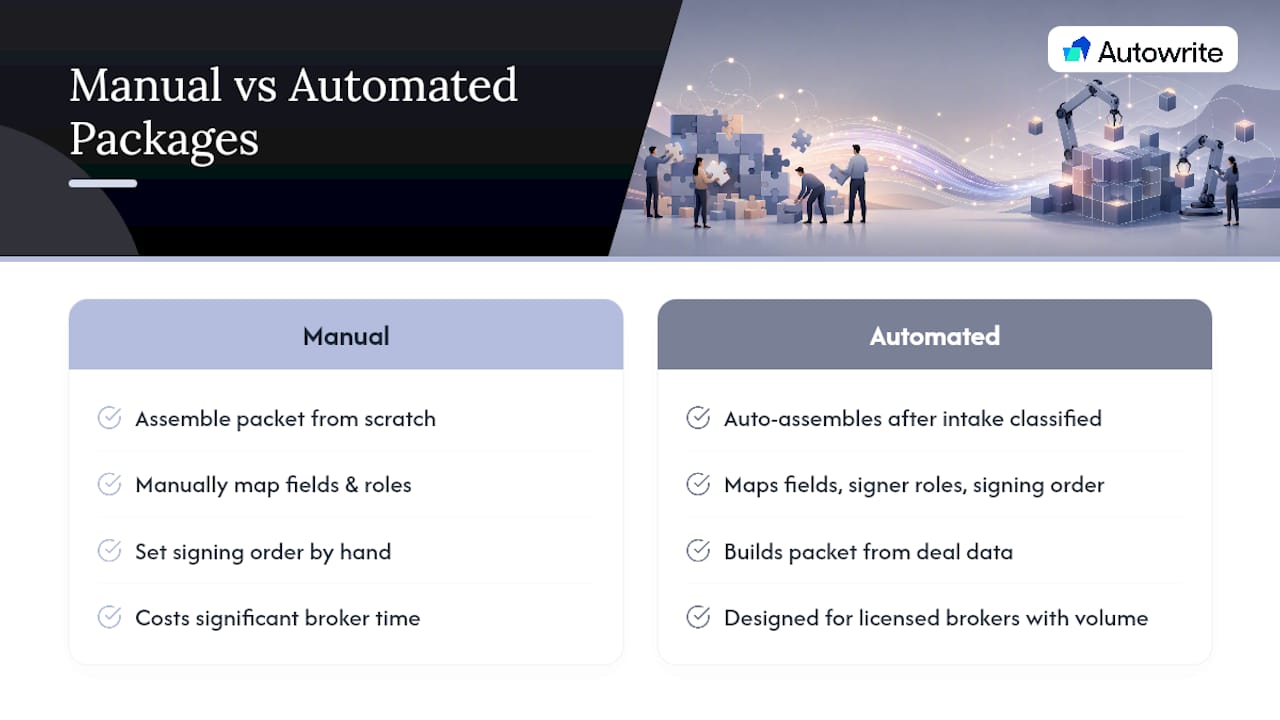
Manual e-sign assembly for a mortgage file usually means classifying a dozen or more documents, mapping fields for two to four signers, and double-checking signing order before every send. Automation software can streamline that entire chain for licensed brokers.
- Document classification: Some systems identify and sort incoming files, so a broker isn't manually labeling every disclosure and application before assembly starts.
- Template mapping: recurring document sets can map to pre-built field layouts instead of being rebuilt for every borrower.
- Signer mapping: borrower, co-borrower, and guarantor roles may be assigned automatically based on the intake data already in the file.
- Auto-compilation: executed pages can flow back into the master file, keeping version control intact without manual reassembly.
Because automating the mapping between documents, fields, and signers is where the largest time gains show up in high-volume workflows like mortgage closings, brokers running dozens of files a month feel the difference most on repeat structures like refinances and renewals, where the document set barely changes between deals. The automation also enforces signing order consistently across every file, which removes the human error risk of an out-of-sequence signature on a co-borrower agreement. For brokers still assembling packages by hand, a mortgage document checklist is a useful starting point before making the jump to automation.
What I've Learned Watching Brokers Assemble Packages Under Deadline
Three rules of thumb separate clean closings from messy ones. First, finalize every document before you touch the signing ceremony. Second, enforce signing order whenever one signature legally depends on another, and never assume parallel signing is fine just because it's faster. Third, test the ceremony yourself before any signer sees it. Skipping that last step is the single most common regret I hear about after a package gets voided mid-transaction.
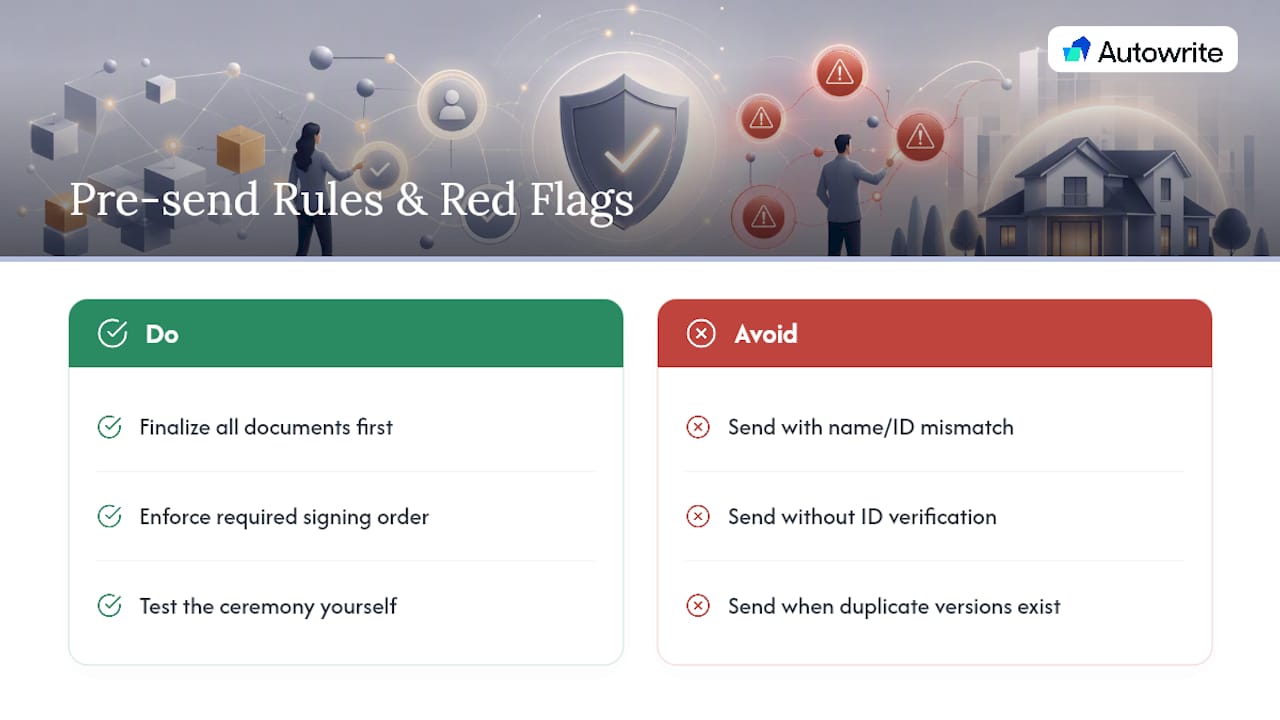
Watch for these red flags before you send: a signer whose legal name doesn't match their ID exactly, missing identity verification on a document tied to financing, and two versions of the same document circulating because someone edited a file after the package was already built. Any one of those should stop a send outright.
The switch from manual assembly to automation isn't about volume alone. It's about the moment your error rate, not your workload, becomes the bottleneck. If you're re-checking signer order by hand more than once a week, you've already reached that moment.
— Anant Bawa
Ready to Automate Your Mortgage E-Sign Packages?
Certain platforms build the e-sign and compliance package automatically once intake documents are classified, mapping fields, signer roles, and signing order without the manual assembly work described above. That's the real gap between a broker doing this by hand and one running it through a system built specifically for mortgage files: the packet assembles itself from data already in the deal, instead of from scratch every time. These solutions are designed for licensed mortgage brokers, agents, and brokerages managing enough volume that manual assembly has started costing real time. You can see the full workflow and start a trial at Autowrite's platform page, and if email delivery and evidence security are part of your compliance checklist, this email security compliance guide is worth a read alongside your provider's own settings.
Where to Verify the Technical Details
For implementation specifics, the Conga eSignature process overview and Connective's package API documentation cover envelope structure and endpoint behavior. For PKI and digital signature background, Singpass Sign's documentation explains the cryptography behind identity binding, and SimplyAgree's signature packet feature page details automated recompilation.
Sources
- Overview of eSignature Process | Conga Documentation Portal
- How do our digital signatures work? | Singpass Sign docs
- Signature Packets | SimplyAgree